If you work with multiple companies or company role types using one user account, you will have a Company drop-down menu button to the left of the User drop-down menu button. This menu allows you to select which company you would like to view or transact for.
The companies are displayed in the drop-down in alphabetical order. Users with a large list of companies to choose from will be able to scroll through them. The default company is displayed with a check mark next to it.
The page content and available navigation buttons will change according to each company selected. For example, only messages that apply to the currently selected company will be displayed in the Messages module. Similarly, if you go to Workbench, only the Trading Partners and documents associated with the currently selected company will be displayed.
The companies listed in the Company drop-down may have associated company role types (buyer or supplier). For details on company role types, refer to Users, page 1.
To select a company:
- Click the Company drop-down menu button.
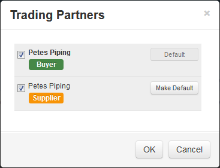
- Select the company you would like to view or transact for.
The currently selected company is displayed on the menu button.
|
Note |
This drop-down menu will only display for users who work with multiple companies or company role types using one user account. |